

Save your customer's payment information securely to streamline future payments and reduce payment collection time. With Card on File, you can charge approved cards directly from any invoice without asking customers to enter their payment details again.
What You'll Need
- An active ScanPay account
- Add cards: Permission to add cards on file (Dispatch Admin or Owner/Admin role)
- Important: Explicit consent from your customer to save their card
Understanding Card on File Permissions
Before you start, check your team permissions. ScanPay has three levels of card on file access:
Adding a Card on File
Option 1: From a Customer Profile
- Navigate to Customers and select the customer
- Tap or click Add card on file
- Enter the card information:
- Card number, expiration date, CVV, and ZIP code
- Cardholder's full name (as it appears on the card)
- Complete billing address
- Review the authorization notice
- Tap Save

Option 2: From an Invoice
- Open any invoice for the customer
- Tap Share invoice or Collect payment
- Tap on Charge a card on file
- Look for the Save a card to customer profile button
- Follow the same steps above to enter card details
- Tap Save

Important: Customer Authorization
Before saving any card, you must have written and signed authorization from your customer. Here's what you need:
Best practices for getting consent:
- Have customers sign your service agreement that includes card storage authorization
- Get written or email confirmation from the customer
- Keep copies of all authorization documents
This documentation is critical. If a customer disputes a charge later, you'll need proof that they authorized you to save and charge their card.
Charging a Saved Card
Once you've saved a card, charging it takes just seconds.
Step-by-Step: Charging a Card on File
- Open the invoice you want to collect payment on
- Tap Share invoice or Collect payment
- Confirm the payment amount is correct
- Tap on Charge a card on file
- You'll see the customer's saved card displayed:
- Card brand (Visa, Mastercard, etc.)
- Last 4 digits (e.g., ••••1234)
- Cardholder name
- Expiration date
- Tap **Charge [Card Brand] **[Last 4] to process the payment
The payment processes immediately, and the invoice is automatically marked as paid.
Managing Saved Cards
Viewing Card Details
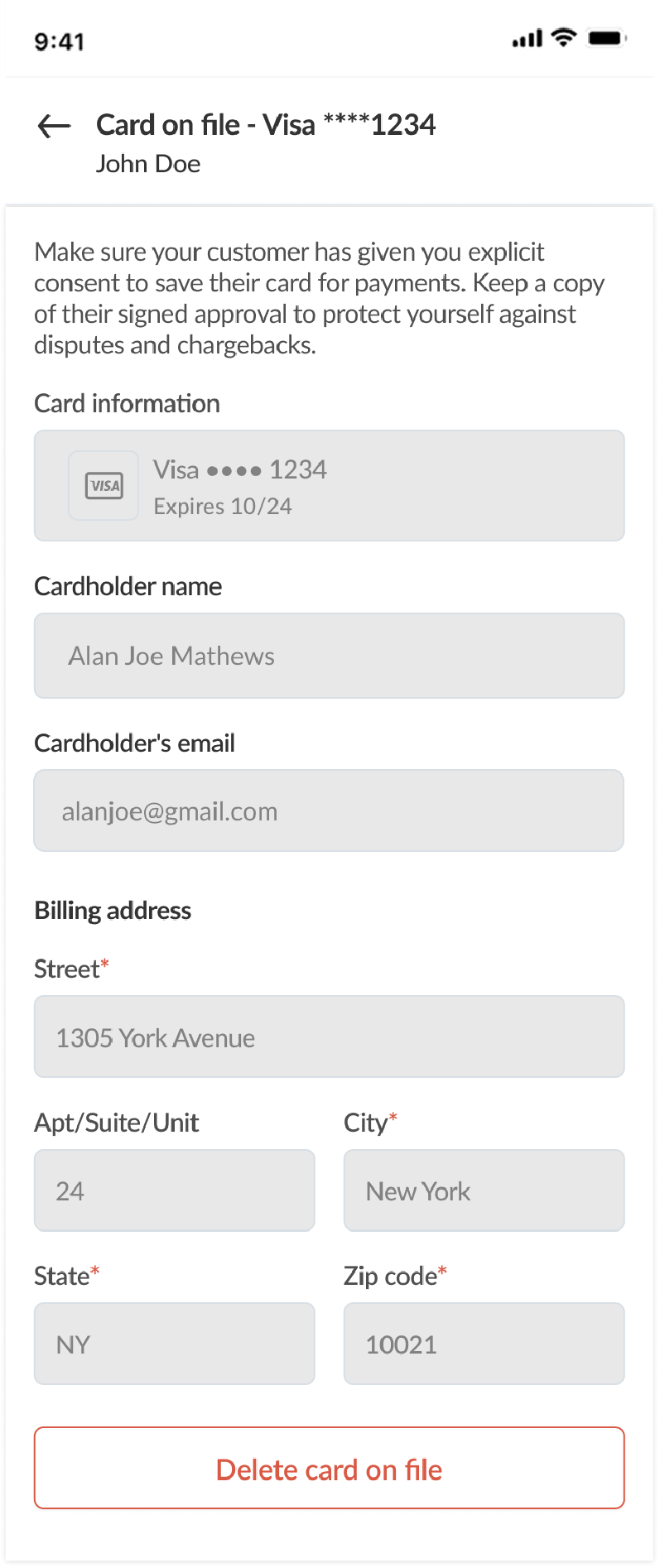
Any team member with "View saved cards" permission can see:
- Card brand and last 4 digits
- Cardholder name
- Expiration date
- Billing address
Security note: Full card numbers are never displayed anywhere in ScanPay. All card data is securely tokenized.

Updating a Card
Currently, ScanPay allowa saving one card per customer profile. Customer's card expired, or they got a new one? Here's how to update it:
To update:
- Navigate to the customer's profile
- Tap the saved card
- Delete the existing card (Owners/Admins only)
- Tap Add card on file and enter the new card details
- Tap Save
Note: Card deletion is only available to Owners and Admins. If you're a Dispatch Admin or Member, ask your business owner to remove or update the card.
Quick Tips
- Get written authorization before saving any card
- Keep authorization documentation with customer records
- Monitor expiration dates and update cards proactively
- Verify card details before saving to avoid errors
- Document all changes to card information in customer notes
Frequently Asked Questions
